Install NVIDIA GPU driver and Docker on RHEL 8

info
In this tutorial, the instructions work on RHEL 8, and the installation steps are demonstrated on GCP Compute Engine.
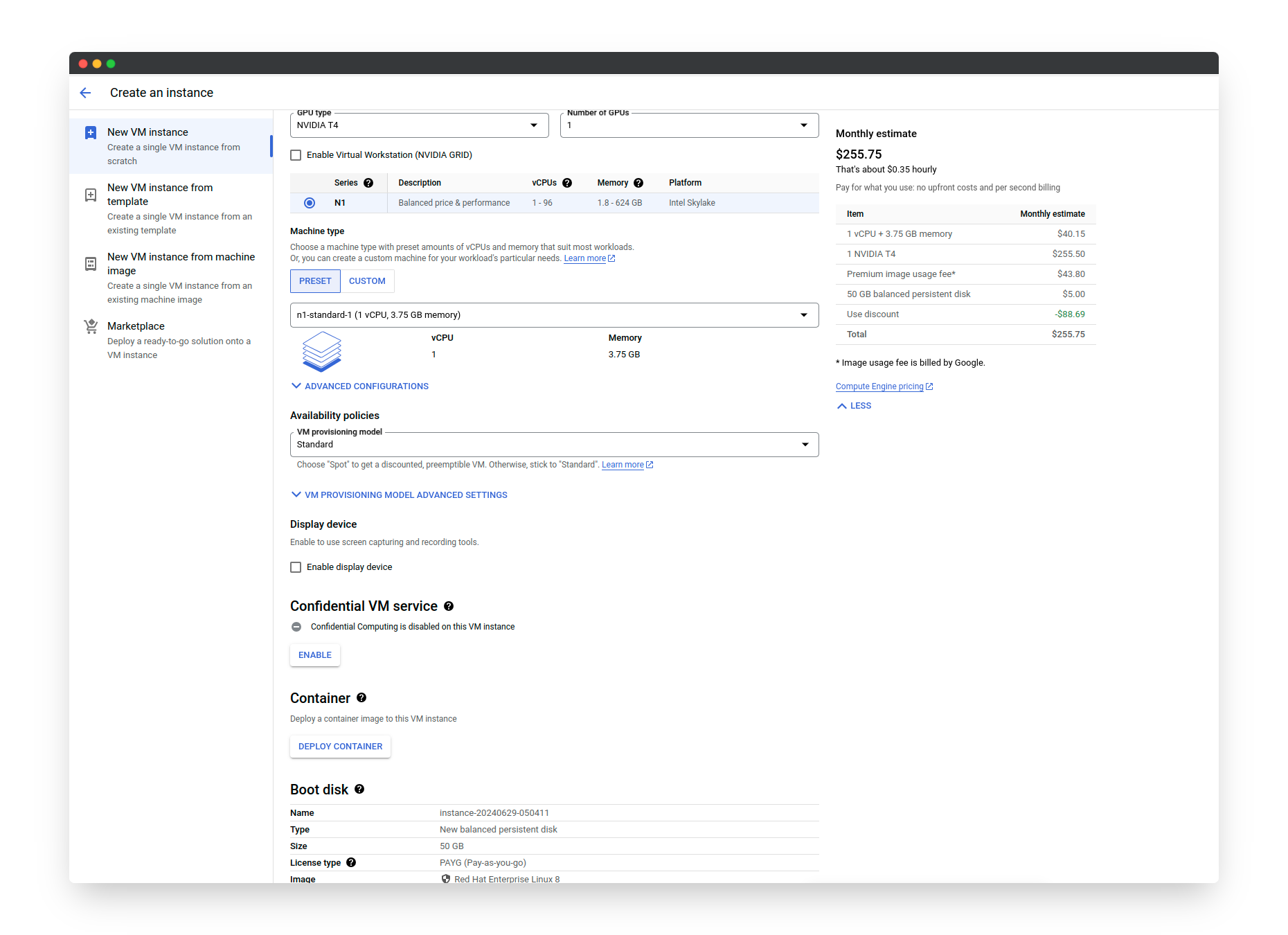
1. Choose a VM on GCP
Please use at least 4 cores. The selected instance type n1-standard-1 is too weak. For detection tasks, we should choose the n1-standard-4 type instead.
Spec
$ lscpu

Architecture:        x86_64
CPU op-mode(s):      32-bit, 64-bit
Byte Order:          Little Endian
CPU(s):              1
On-line CPU(s) list: 0
Thread(s) per core:  1
Core(s) per socket:  1
Socket(s):           1
NUMA node(s):        1
Vendor ID:           GenuineIntel
CPU family:          6
Model:               79
Model name:          Intel(R) Xeon(R) CPU @ 2.20GHz
Stepping:            0
CPU MHz:             2199.998
BogoMIPS:            4399.99
Hypervisor vendor:   KVM
Virtualization type: full
L1d cache:           32K
L1i cache:           32K
L2 cache:            256K
L3 cache:            56320K
NUMA node0 CPU(s):   0
Flags:               fpu vme de pse tsc msr pae mce cx8 apic sep mtrr pge mca cmov pat pse36 clflush mmx fxsr sse sse2 ss ht syscall nx pdpe1gb rdtscp lm constant_tsc rep_good nopl xtopology nonstop_tsc cpuid tsc_known_freq pni pclmulqdq ssse3 fma cx16 pcid sse4_1 sse4_2 x2apic movbe popcnt aes xsave avx f16c rdrand hypervisor lahf_lm abm 3dnowprefetch invpcid_single pti ssbd ibrs ibpb stibp fsgsbase tsc_adjust bmi1 hle avx2 smep bmi2 erms invpcid rtm rdseed adx smap xsaveopt arat md_clear arch_capabilities

$ uname -a

Linux instance-20240629-050411 4.18.0-513.24.1.el8_9.x86_64 #1 SMP Thu Mar 14 14:20:09 EDT 2024 x86_64 x86_64 x86_64

$ cat /etc/*-release

NAME="Red Hat Enterprise Linux"
VERSION="8.10 (Ootpa)"
ID="rhel"
ID_LIKE="fedora"
VERSION_ID="8.10"
PLATFORM_ID="platform:el8"
PRETTY_NAME="Red Hat Enterprise Linux 8.10 (Ootpa)"
ANSI_COLOR="0;31"
CPE_NAME="cpe:/o:redhat:enterprise_linux:8::baseos"
HOME_URL="https://www.redhat.com/"
DOCUMENTATION_URL="https://access.redhat.com/documentation/en-us/red_hat_enterprise_linux/8"
BUG_REPORT_URL="https://bugzilla.redhat.com/"

REDHAT_BUGZILLA_PRODUCT="Red Hat Enterprise Linux 8"
REDHAT_BUGZILLA_PRODUCT_VERSION=8.10
REDHAT_SUPPORT_PRODUCT="Red Hat Enterprise Linux"
REDHAT_SUPPORT_PRODUCT_VERSION="8.10"
Red Hat Enterprise Linux release 8.10 (Ootpa)
Red Hat Enterprise Linux release 8.10 (Ootpa)
2. Install Docker
sudo yum install -y yum-utils
sudo yum-config-manager --add-repo https://download.docker.com/linux/rhel/docker-ce.repo

sudo yum install docker-ce docker-ce-cli containerd.io docker-buildx-plugin docker-compose-plugin
sudo systemctl start docker
sudo docker run hello-world
3. Install NVIDIA GPU Driver
We chose 525 version.
sudo dnf config-manager --add-repo=https://developer.download.nvidia.com/compute/cuda/repos/rhel8/x86_64/cuda-rhel8.repo
sudo dnf module install nvidia-driver:525
sudo dnf install nvidia-fabric-manager libnvidia-nscq-525

echo 'blacklist nouveau' | sudo tee /etc/modprobe.d/nouveau-blacklist.conf
sudo dracut --force
sudo systemctl enable nvidia-fabricmanager.service
sudo systemctl enable nvidia-persistenced.service

sudo systemctl reboot
nvidia-smi
Output:
[user@instance~]$ nvidia-smi
Sat Jun 29 05:17:13 2024
+-----------------------------------------------------------------------------+
| NVIDIA-SMI 525.147.05   Driver Version: 525.147.05   CUDA Version: 12.0     |
|-------------------------------+----------------------+----------------------+
| GPU  Name        Persistence-M| Bus-Id        Disp.A | Volatile Uncorr. ECC |
| Fan  Temp  Perf  Pwr:Usage/Cap|         Memory-Usage | GPU-Util  Compute M. |
|                               |                      |               MIG M. |
|===============================+======================+======================|
|   0  Tesla T4            On   | 00000000:00:04.0 Off |                    0 |
| N/A   68C    P8    20W /  70W |      2MiB / 15360MiB |      0%      Default |
|                               |                      |                  N/A |
+-------------------------------+----------------------+----------------------+

+-----------------------------------------------------------------------------+
| Processes:                                                                  |
|  GPU   GI   CI        PID   Type   Process name                  GPU Memory |
|        ID   ID                                                   Usage      |
|=============================================================================|
|  No running processes found                                                 |
+-----------------------------------------------------------------------------+
4. Install NVIDIA Container Toolkit
curl -s -L https://nvidia.github.io/libnvidia-container/stable/rpm/nvidia-container-toolkit.repo | \
sudo tee /etc/yum.repos.d/nvidia-container-toolkit.repo

sudo dnf install yum-utils
sudo yum-config-manager --enable nvidia-container-toolkit-experimental

sudo yum install -y nvidia-container-toolkit
Configuring Docker
sudo nvidia-ctk runtime configure --runtime=docker
Output:
Output:
INFO[0000] Config file does not exist; using empty config
INFO[0000] Wrote updated config to /etc/docker/daemon.json
INFO[0000] It is recommended that docker daemon be restarted.
Then restart Docker.
sudo systemctl restart docker
Testing:
sudo docker run --rm --runtime=nvidia --gpus all ubuntu nvidia-smi

Sat Jun 29 05:20:34 2024
+-----------------------------------------------------------------------------+
| NVIDIA-SMI 525.147.05   Driver Version: 525.147.05   CUDA Version: 12.0     |
|-------------------------------+----------------------+----------------------+
| GPU  Name        Persistence-M| Bus-Id        Disp.A | Volatile Uncorr. ECC |
| Fan  Temp  Perf  Pwr:Usage/Cap|         Memory-Usage | GPU-Util  Compute M. |
|                               |                      |               MIG M. |
|===============================+======================+======================|
|   0  Tesla T4            On   | 00000000:00:04.0 Off |                    0 |
| N/A   44C    P8    11W /  70W |      2MiB / 15360MiB |      0%      Default |
|                               |                      |                  N/A |
+-------------------------------+----------------------+----------------------+

+-----------------------------------------------------------------------------+
| Processes:                                                                  |
|  GPU   GI   CI        PID   Type   Process name                  GPU Memory |
|        ID   ID                                                   Usage      |
|=============================================================================|
|  No running processes found                                                 |
+-----------------------------------------------------------------------------+
troubleshooting
If you encounter this error, you can restart your docker.
docker: Error response from daemon: failed to create task for container: failed to create shim task: OCI runtime create failed: runc create failed: unable to start container process: exec: "nvidi-smi": executable file not found in $PATH: unknown.
Network Firewall setup on GCP
If you have deployed your application services on GCP, you can follow these steps to turn on the port for network firewall.
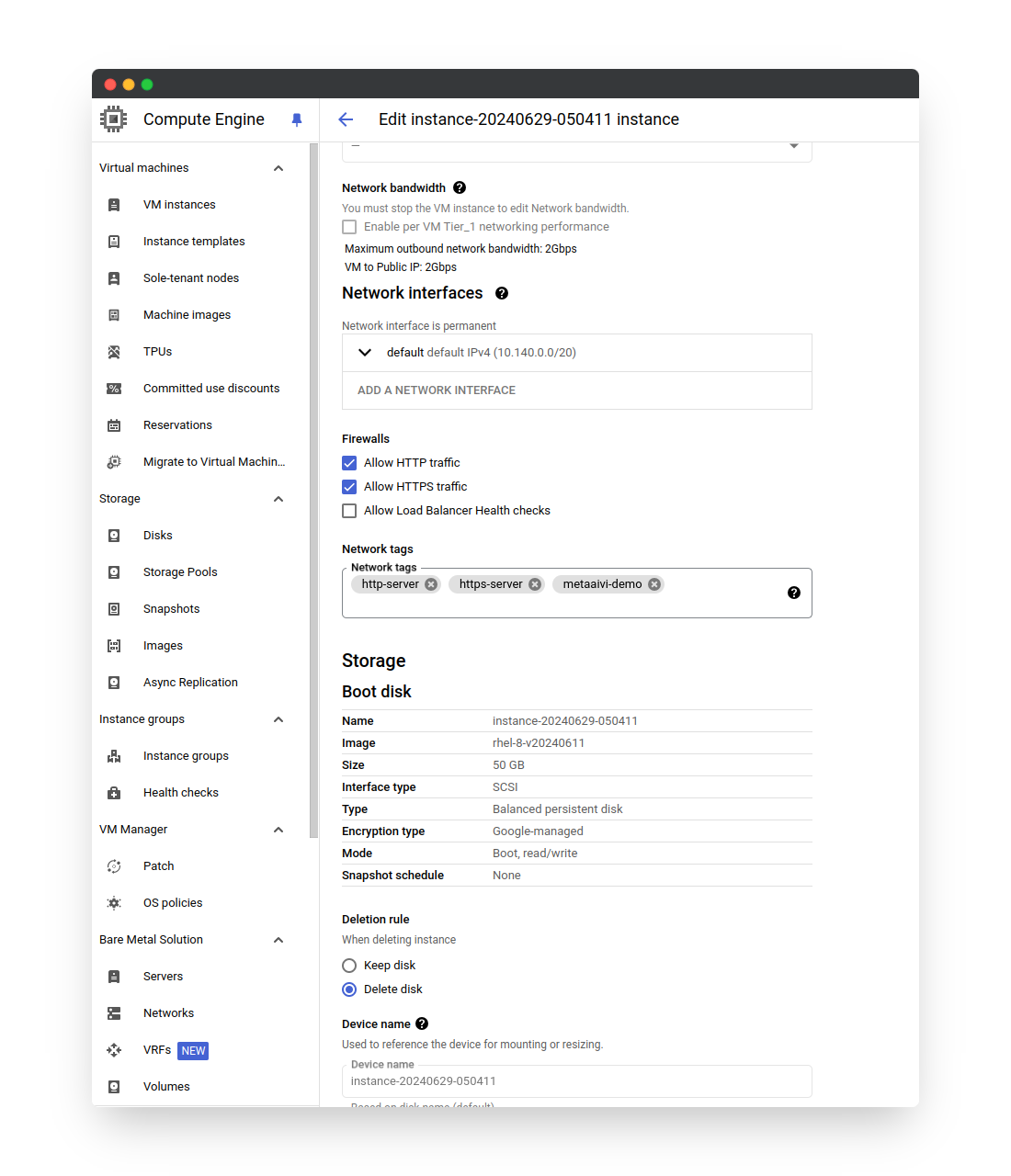
First, go to the VPC network and create a rule for a specific tag.
Go to the VM page and edit the network settings. Basically, applying the specified tag will make the VM use the corresponding rule.